Teacher Guide
Author and publish papers, build a reusable question bank, share exams, and review or grade attempts, all within your organization.
As a teacher you author and publish exams, build a reusable question bank, share papers with students, and review or grade attempts. You can sign in directly or be launched straight into ICT Exam from a Moodle activity, with no separate login needed.
Your dashboard
The Dashboard lists your papers. Use New paper to create one, Gradebook to see results, and the mine filter to show only papers you authored.
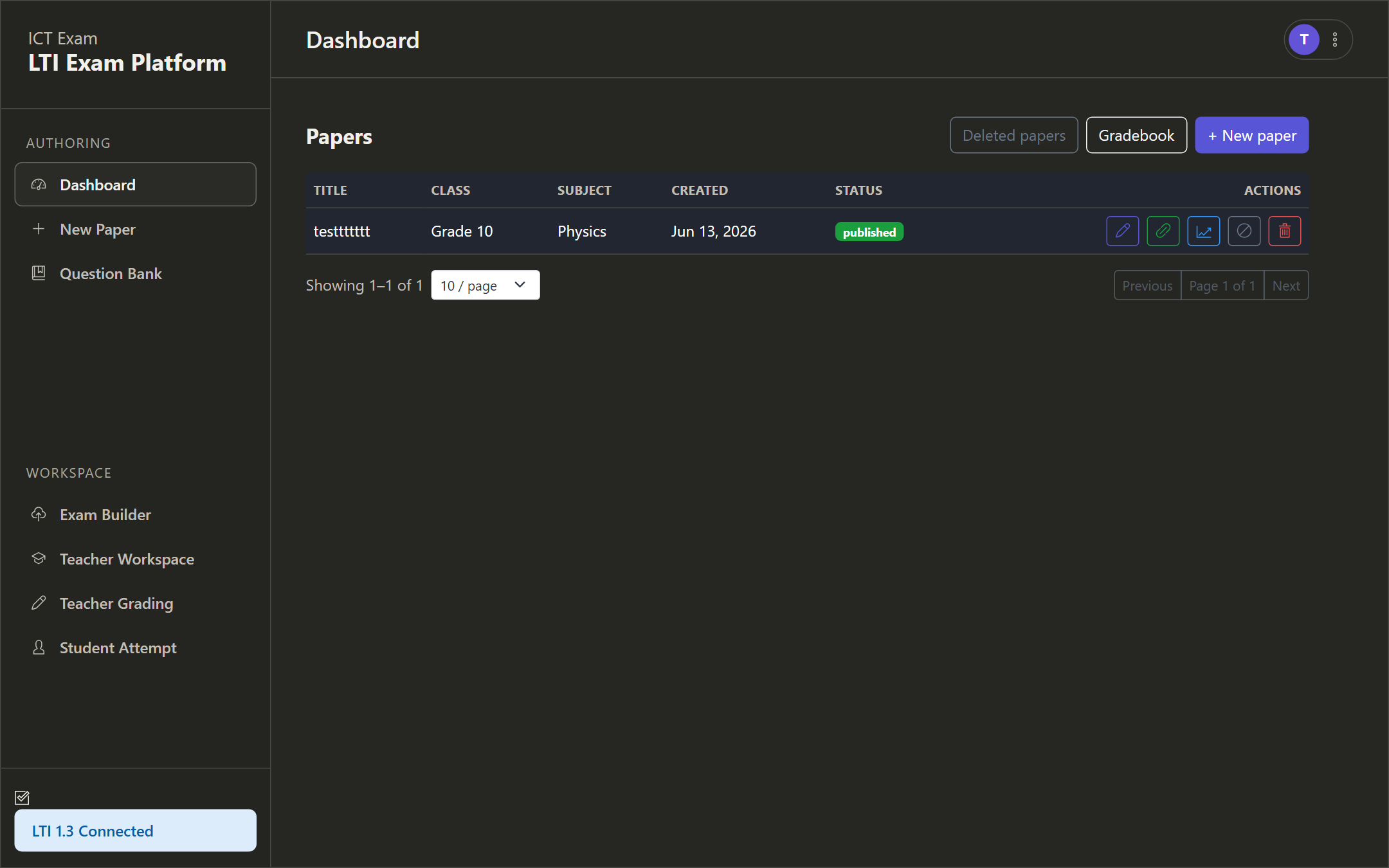
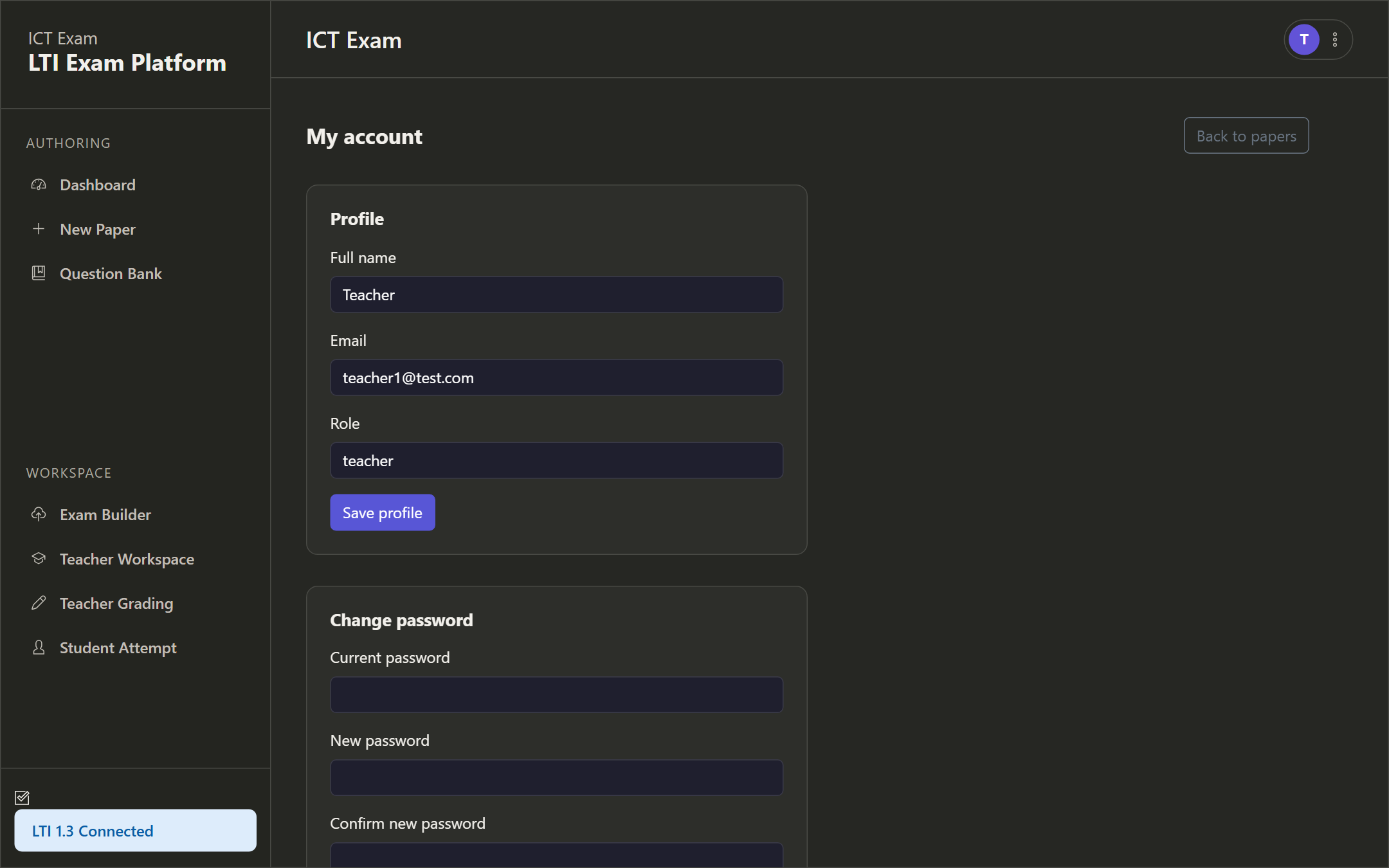
The sidebar gives you New Paper and Question Bank under Authoring, and Exam Builder, Teacher Workspace, Teacher Grading and Student Attempt under Workspace.
Authoring a paper
Click New Paper. Authoring is a four-step wizard: 1. Metadata, 2. Questions, 3. Review, 4. Done.
Step 1 — Metadata
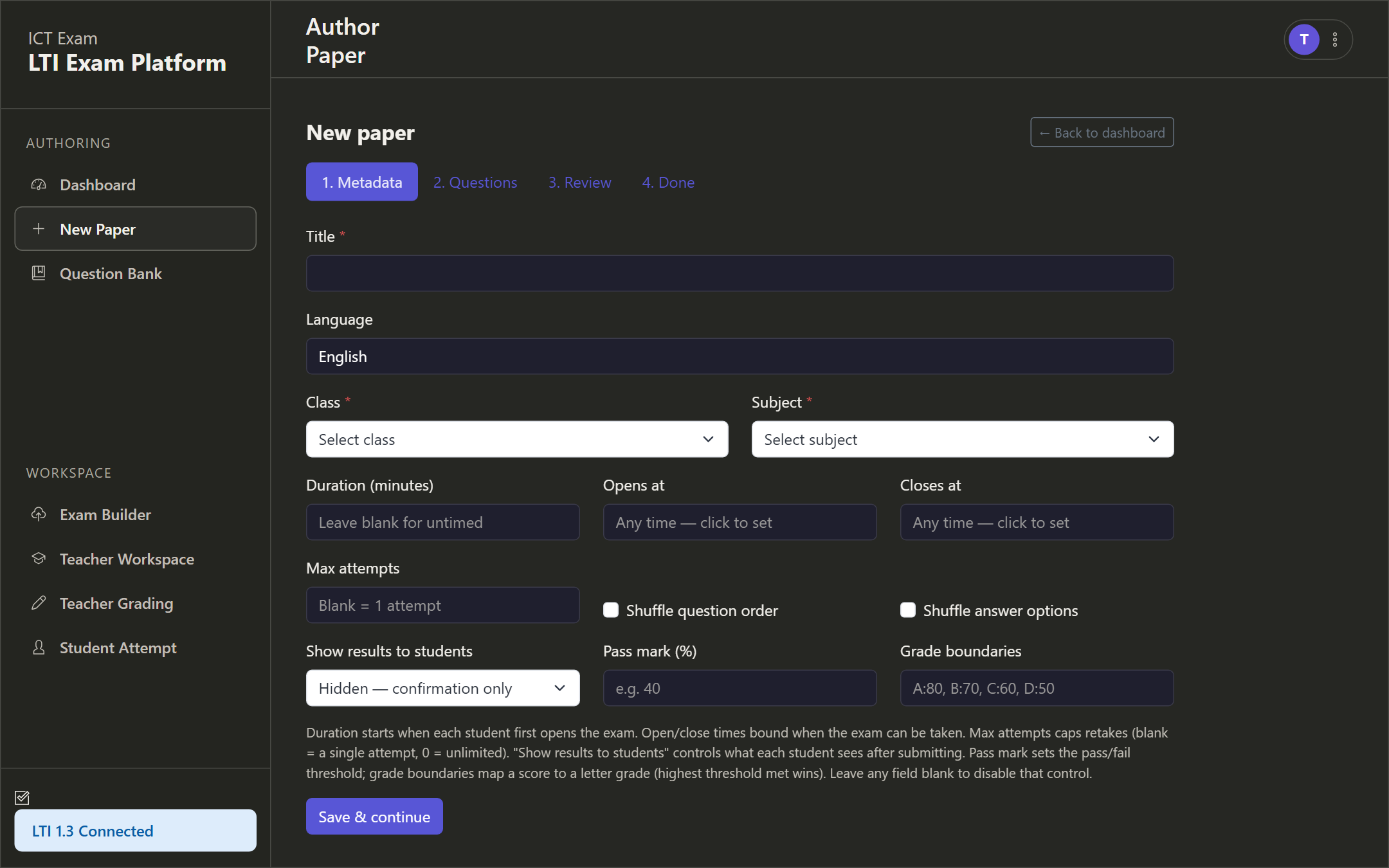
Fill in:
- Title (required) and Language.
- Class and Subject (required), picked from your organization’s lists.
- Duration in minutes — the per-student timer; blank means untimed.
- Opens at and Closes at — the availability window; blank means always open.
- Max attempts — blank means one attempt, zero means unlimited.
- Shuffle question order and Shuffle answer options.
- Show results to students — confirmation only, or full per-question marks and feedback.
- Pass mark and Grade boundaries (for example A:80, B:70, C:60, D:50); leave blank to disable.
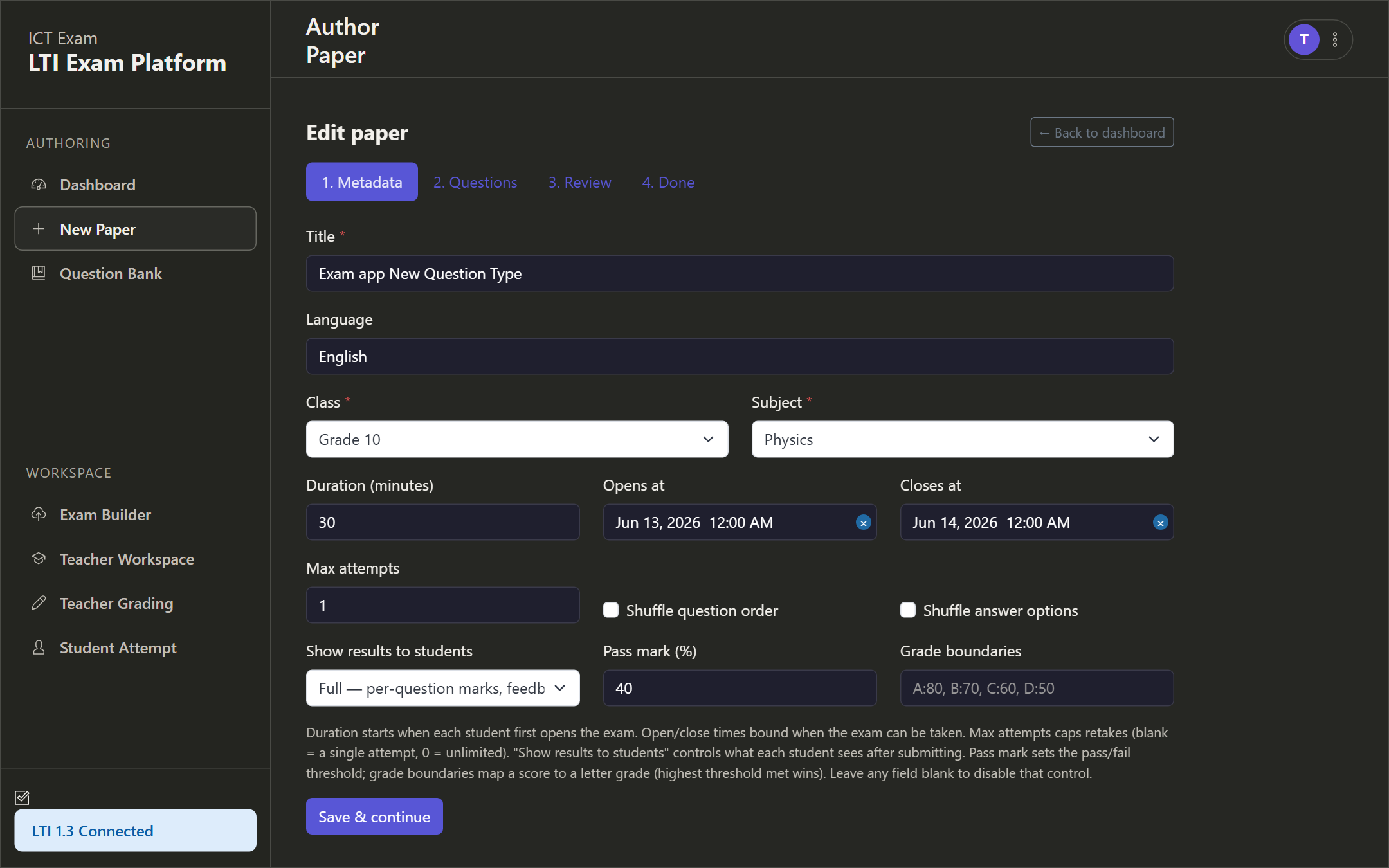
Click Save and continue. The same screen is used to edit an existing paper.
Step 2 — Questions
Add questions of any supported type. How each one is scored:
| Type | How it is graded |
|---|---|
| Multiple choice, True or False, Multi-select | Instantly against the answer key |
| Fill in the blank | Instantly, accepting equivalent math forms |
| Short answer with an explicit answer | Instantly, accepting equivalent math forms |
| Short or long open answer | AI-assisted review, with teacher review as a fallback |
| Numeric | Instantly, accepting equivalent forms |
| Matching, Ordering | Instantly (drag-and-drop for students) |
| Image-prompt | AI-assisted vision, with teacher review as a fallback |
You can also Add from bank to insert a saved question, or save a question to the bank for reuse.
Steps 3 and 4 — Review and publish
Review the assembled paper, then publish. Publishing generates a student share link and a teacher review link. Unpublish to take it offline.
Question bank
Open Question Bank to manage reusable questions across papers.
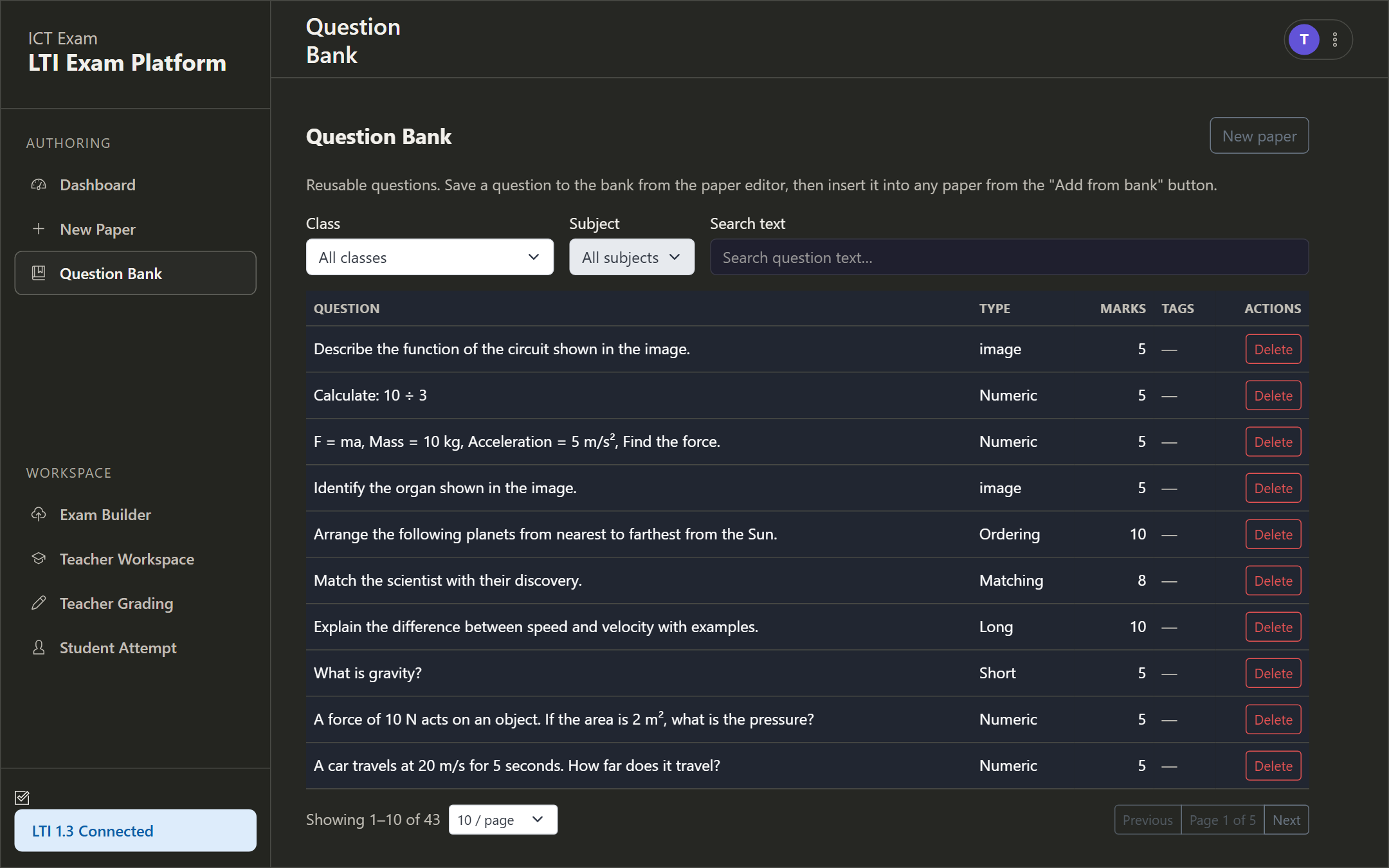
Filter by Class, Subject or search text; each row shows the question, type, marks and tags, with a delete action. Save a question to the bank from the paper editor, then Add from bank into any paper. The list is paginated.
Gradebook
Open Gradebook from the dashboard for a matrix of students against papers.
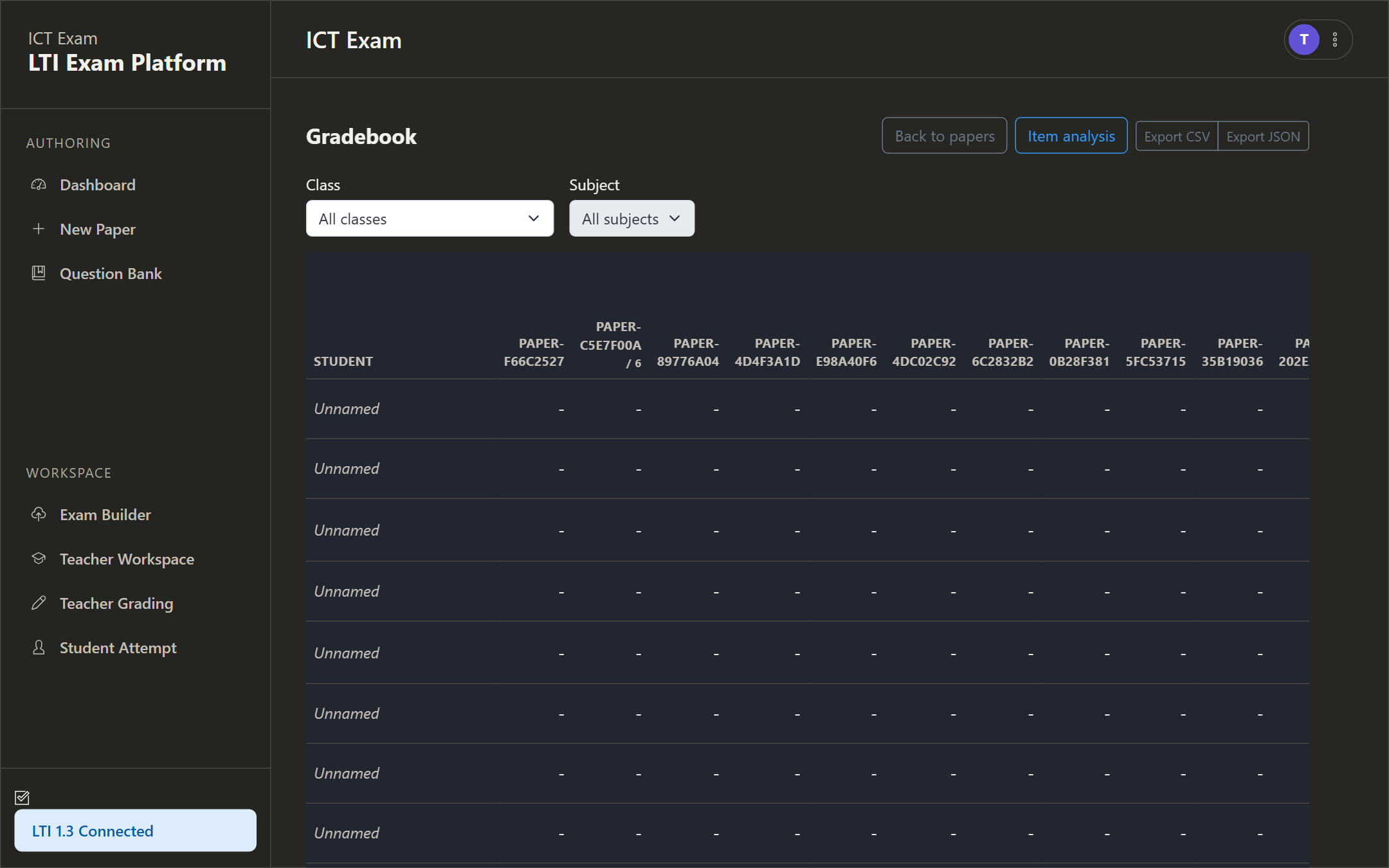
Filter by Class and Subject, jump to Item analysis, or Export. A dash means the student has no attempt for that paper.
Item analysis
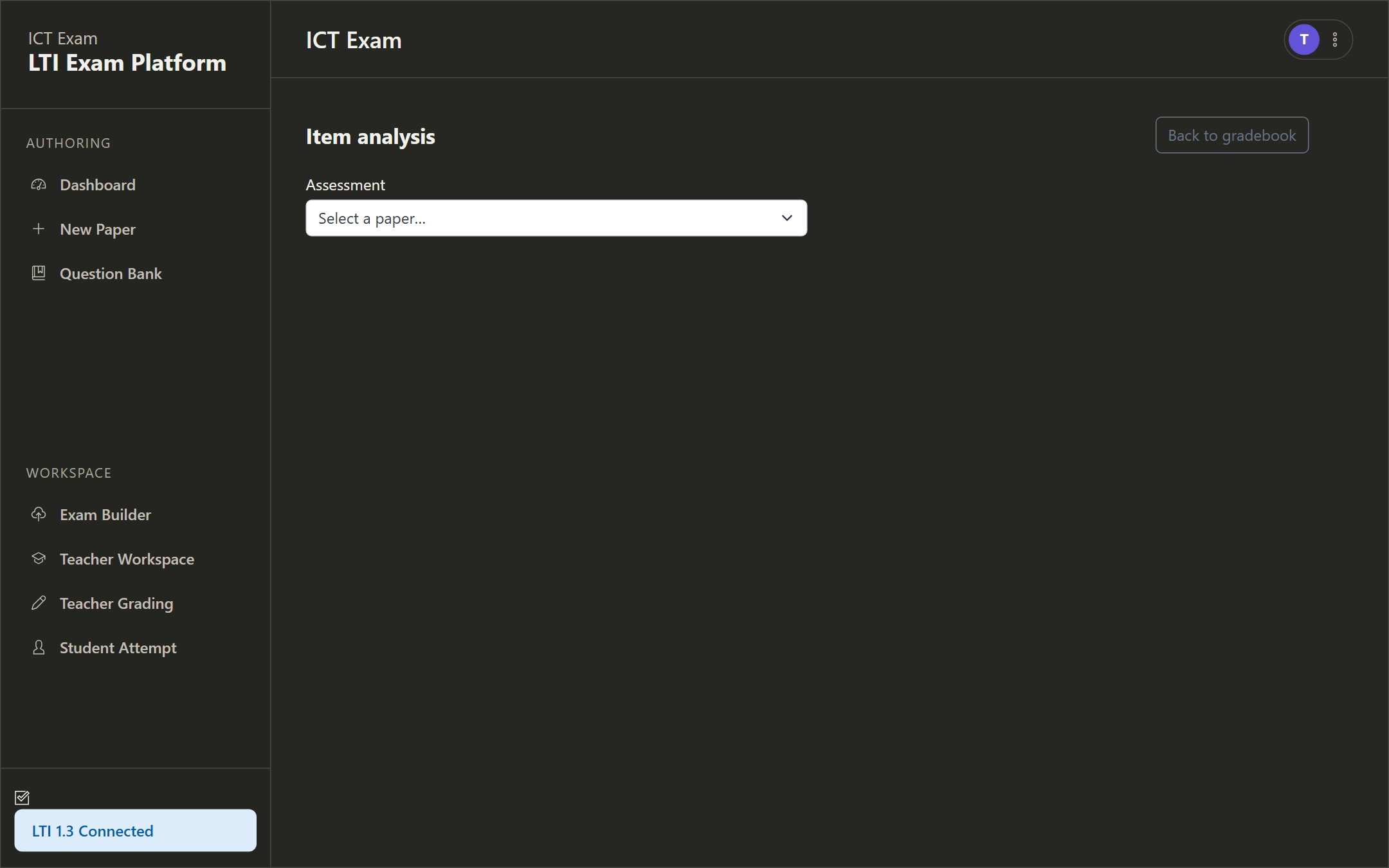
From the gradebook, click Item analysis and select a paper to see per-question statistics such as difficulty and discrimination, useful for spotting weak or ambiguous questions.
Grading attempts
Open Teacher Grading to review submitted attempts for a paper.
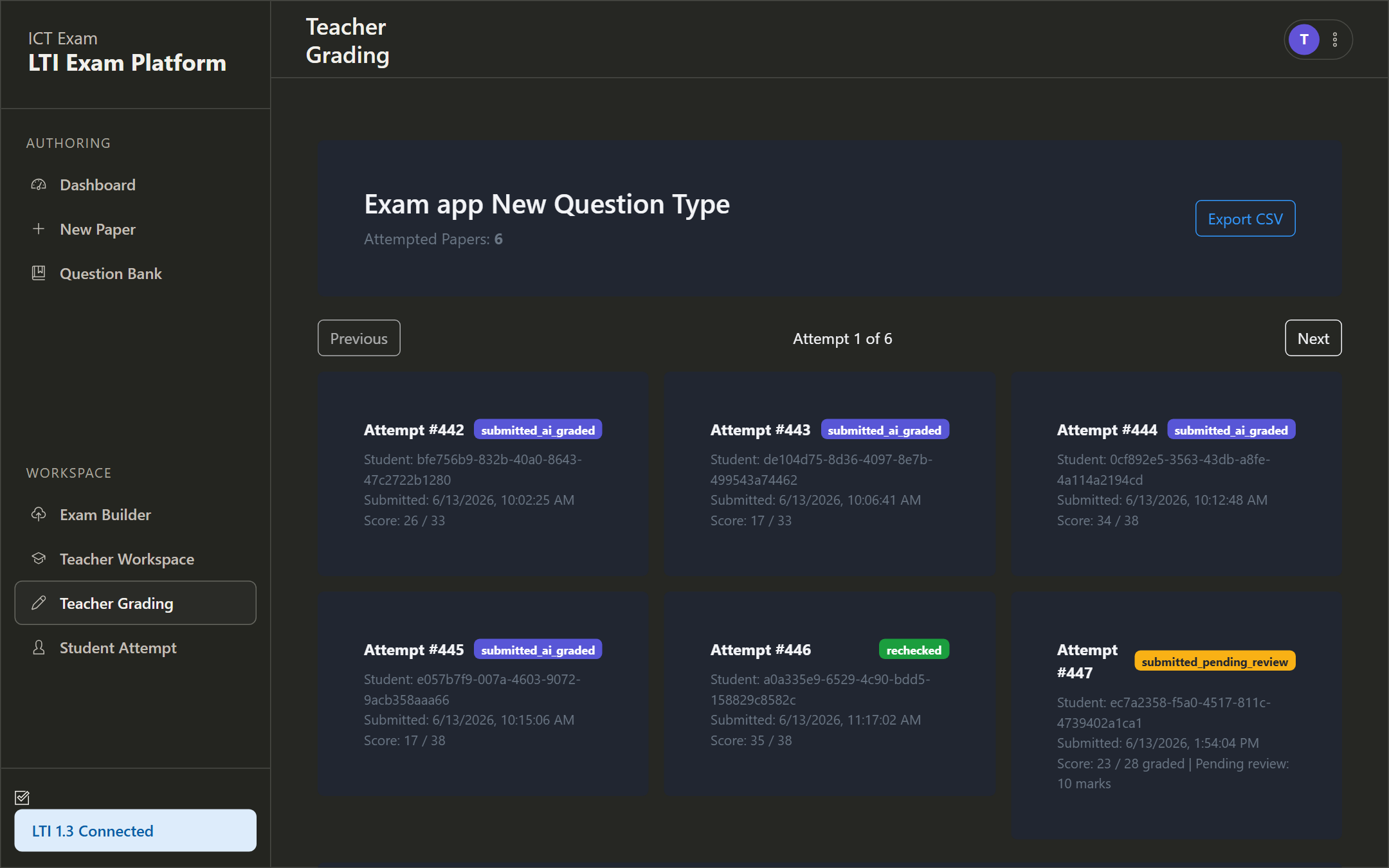
Each attempt card shows the student id, submission time, score, and a status badge:
- AI graded — auto-graded, no action needed.
- Pending review — some questions need you, for example open answers when AI review is unavailable. The summary shows how many marks are pending and each pending card is highlighted.
- Rechecked — you have applied manual marks.
Open an attempt to assign or override marks per question, then Recheck to save. Marks on pending questions are durable, so a second recheck with no changes will not wipe them. When the paper is launched from Moodle, the final total is passed back to the Moodle gradebook automatically.
Why some answers go to pending review. Open-ended and image questions can only be scored by AI. If the AI service is unavailable, those questions are routed to you rather than being wrongly scored zero, so no student is ever auto-penalized.
Your account
Open My account from the top-right menu to update your name and change your password.
Sharing an exam with students
After publishing, give students the student share link. They can take the exam with no account (see the Student Guide). If you launched from Moodle, students simply open the same ICT Exam activity in the course.
Need a hand?
If this guide does not cover what you are after, open a ticket and our team will help.
Contact us