
Super Admin Guide
Provision customers, set plans and seats, top up grading wallets, and manage users across every tenant on ICT Exam.
The super admin operates the whole ICT Exam platform. You provision customers (called tenants), assign their plans and seat limits, top up their grading wallets, and can look across every tenant. This is the only role that is not scoped to a single tenant.
Visibility. A super admin sees and manages every tenant. Tenant admins, teachers and students only ever see their own tenant’s data.
Opening the platform console
Sign in with a super-admin account and open Tenants from the left sidebar, under the Platform heading. This is the platform console.
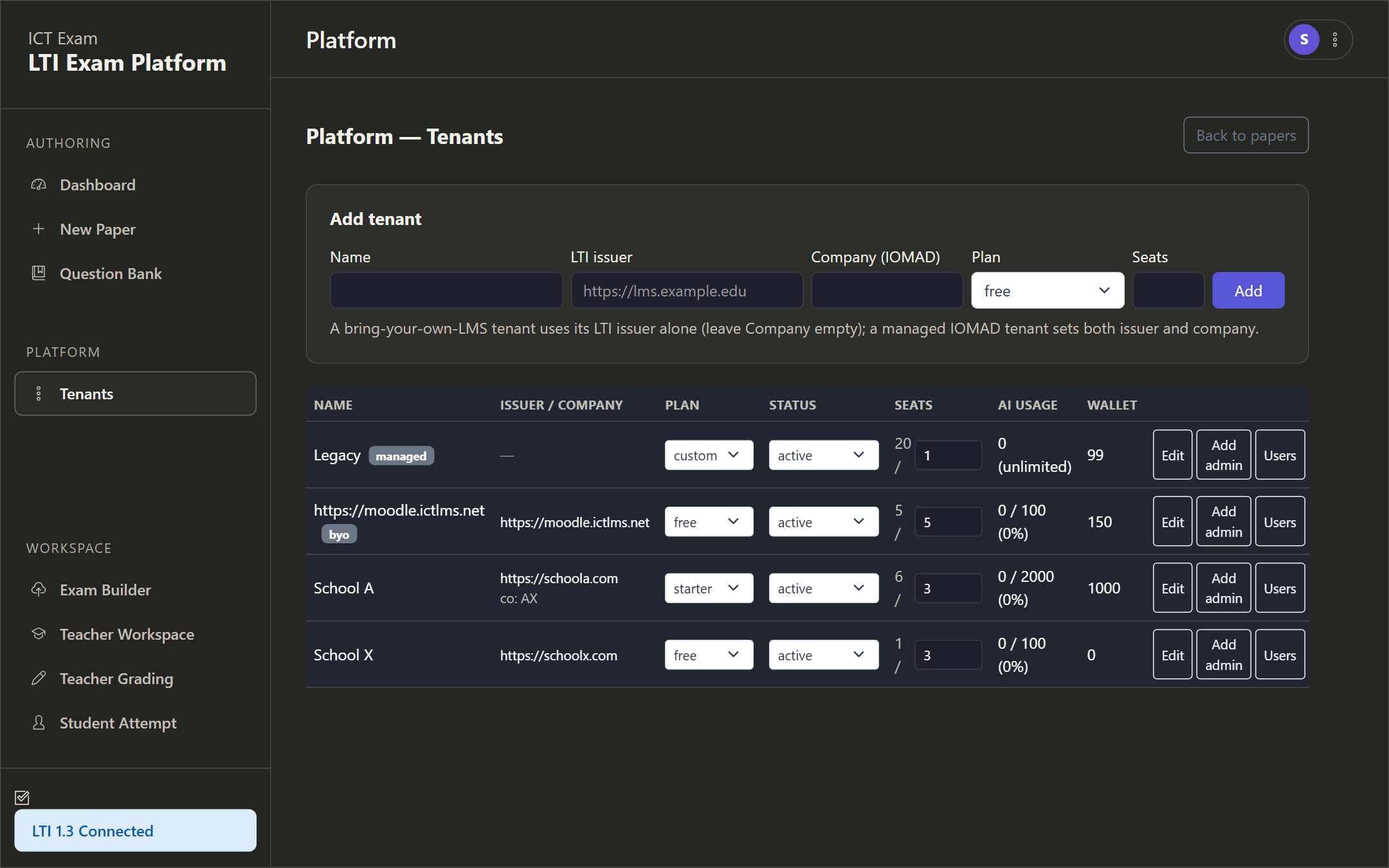
The console has two parts:
- Add tenant form at the top, to create a new customer.
- Tenants table below, listing every tenant with its plan, status, seats, AI usage and wallet balance, plus per-row actions.
The LTI 1.3 Connected badge in the corner confirms the learning-platform integration is live.
Creating a tenant
In the Add tenant row, fill in:
| Field | Meaning |
|---|---|
| Name | Display name for the customer, for example School A. |
| LTI issuer | The learning-platform issuer URL. For bring-your-own-LMS this is the customer’s own platform; for managed it is the hosted Moodle. |
| Company | The managed-Moodle company id. Set this only for managed tenants; leave blank for bring-your-own-LMS, where the issuer alone identifies the tenant. |
| Plan | Free, Starter, Pro or Custom. |
| Seats | Maximum number of user accounts (teachers plus students) the tenant may provision. Blank means unlimited. |
Click Add. The new tenant appears in the table and is seeded with a one-time welcome credit equal to its plan’s allowance.
Two delivery models. A bring-your-own-LMS tenant sets the issuer only. A managed tenant sets both the issuer and the company id.
Reading the tenants table
Each row shows:
- Name, Issuer, Company — the tenant key.
- Plan — change it inline from the dropdown.
- Status — active or suspended. Suspending a tenant pauses its access.
- Seats — used against the limit.
- AI usage — units consumed this period against the plan allowance. Custom plans show unlimited.
- Wallet — current prepaid grading-unit balance.
Per-row actions are Edit, Add admin, Users and Credit.
Crediting a tenant’s grading wallet
AI-assisted grading is paid for in units drawn from a tenant’s prepaid wallet. Text answers cost one unit and image answers cost twelve. When a tenant runs low, top them up.
Click Credit on the tenant’s row, enter the number of units, then click Credit wallet.
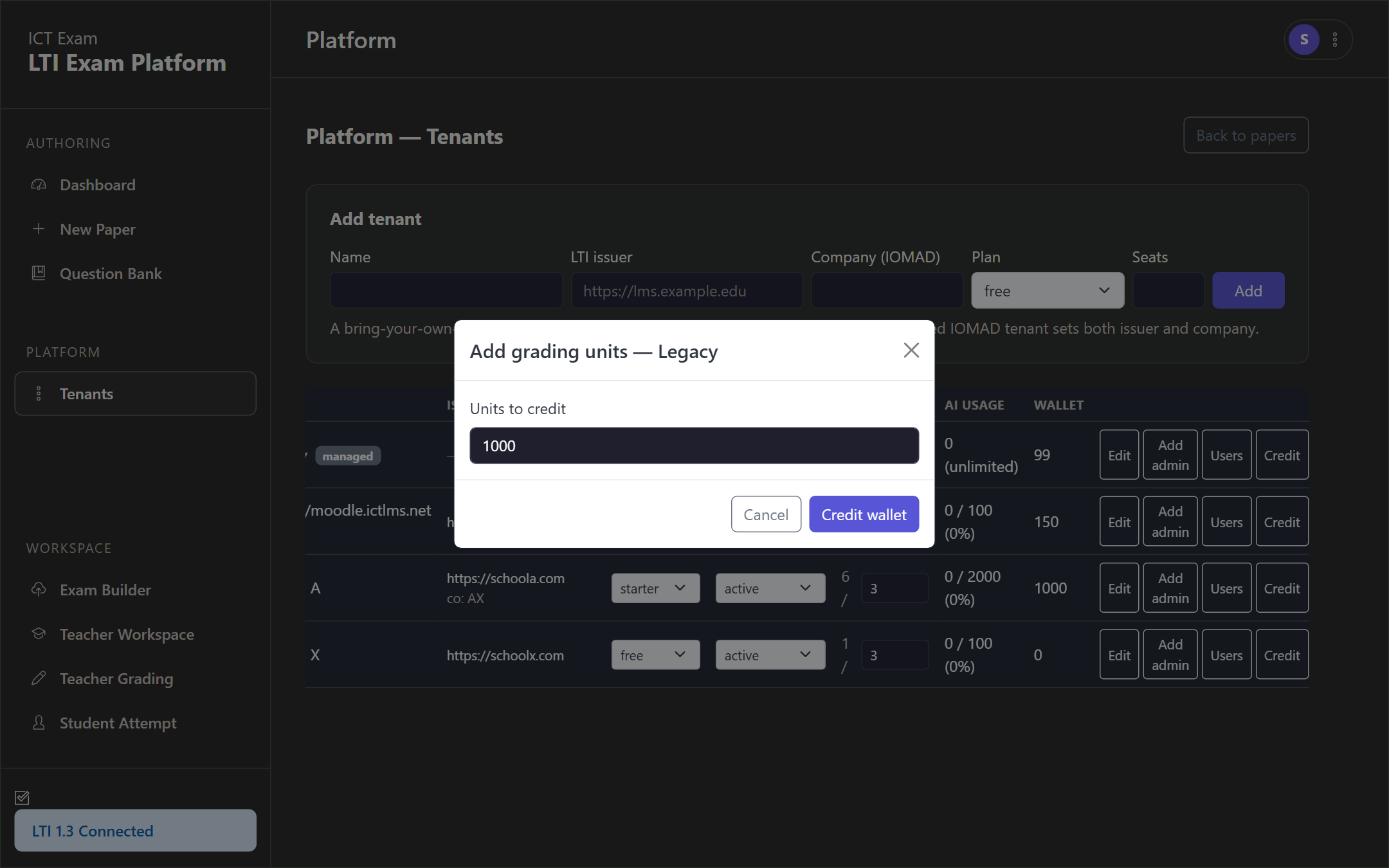
Automated top-ups also arrive from the billing system when a customer pays an invoice. Manual credit is the interim or override path.
Managing a tenant’s users
Click Users on a tenant’s row to list and edit that tenant’s accounts without leaving the console.
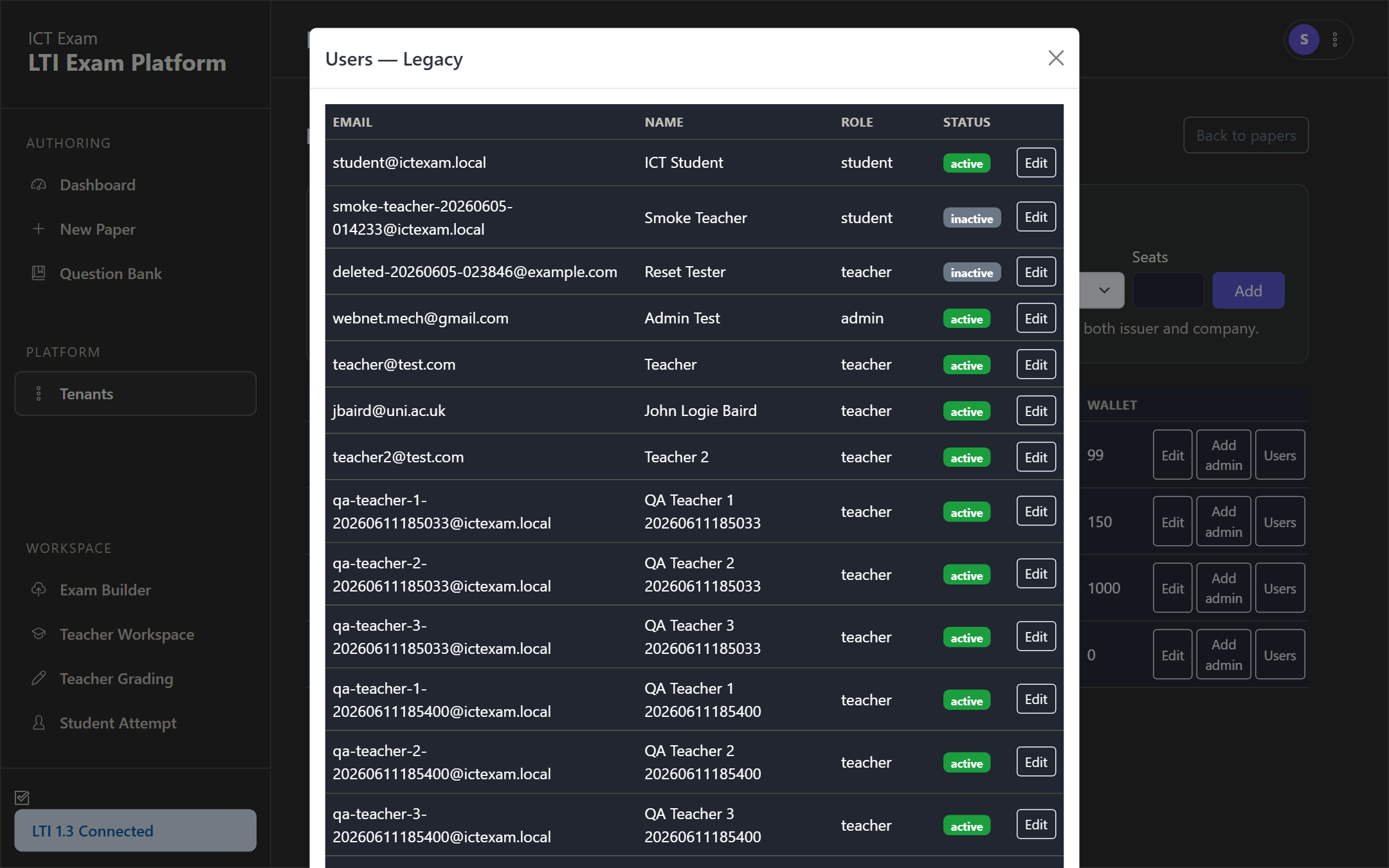
Edits are guarded so a user can never be retargeted across tenants. Use Add admin to create the tenant’s first administrator account.
Plans and allowances
| Plan | AI usage allowance | Typical use |
|---|---|---|
| Free | 100 units | Trials and evaluation |
| Starter | 2,000 units | Small school |
| Pro | 20,000 units | Larger institution |
| Custom | Unlimited | Bespoke arrangements |
The subscription tier and the wallet balance are separate. The recurring tier fee buys seats, features and support plus a one-time welcome credit. Wallet top-ups are independent one-off grading credits, and renewals do not add new units.
Suspending or terminating a tenant
Use the Status dropdown on the tenant’s row to set suspended, which pauses access, or back to active. Lifecycle changes also arrive automatically from the billing system when a customer’s service is suspended, unsuspended or terminated.
Need a hand?
If this guide does not cover what you are after, open a ticket and our team will help.
Contact us