Student Guide
Open an exam from a share link or inside Moodle, answer every question type, and submit with confidence.
As a student you take an exam either from a share link your teacher sends you or by opening the ICT Exam activity inside Moodle. You do not need to create an account for link-based attempts.
Opening the exam
- From a link — click the link your teacher shared. The exam opens directly.
- From Moodle — open the ICT Exam activity in your course and you are taken straight into the exam.
If the exam has an availability window, you will see a message if you arrive too early (“This exam opens at …”) or after it closed (“This exam is closed and is no longer available.”). Come back during the open window.
Taking the exam
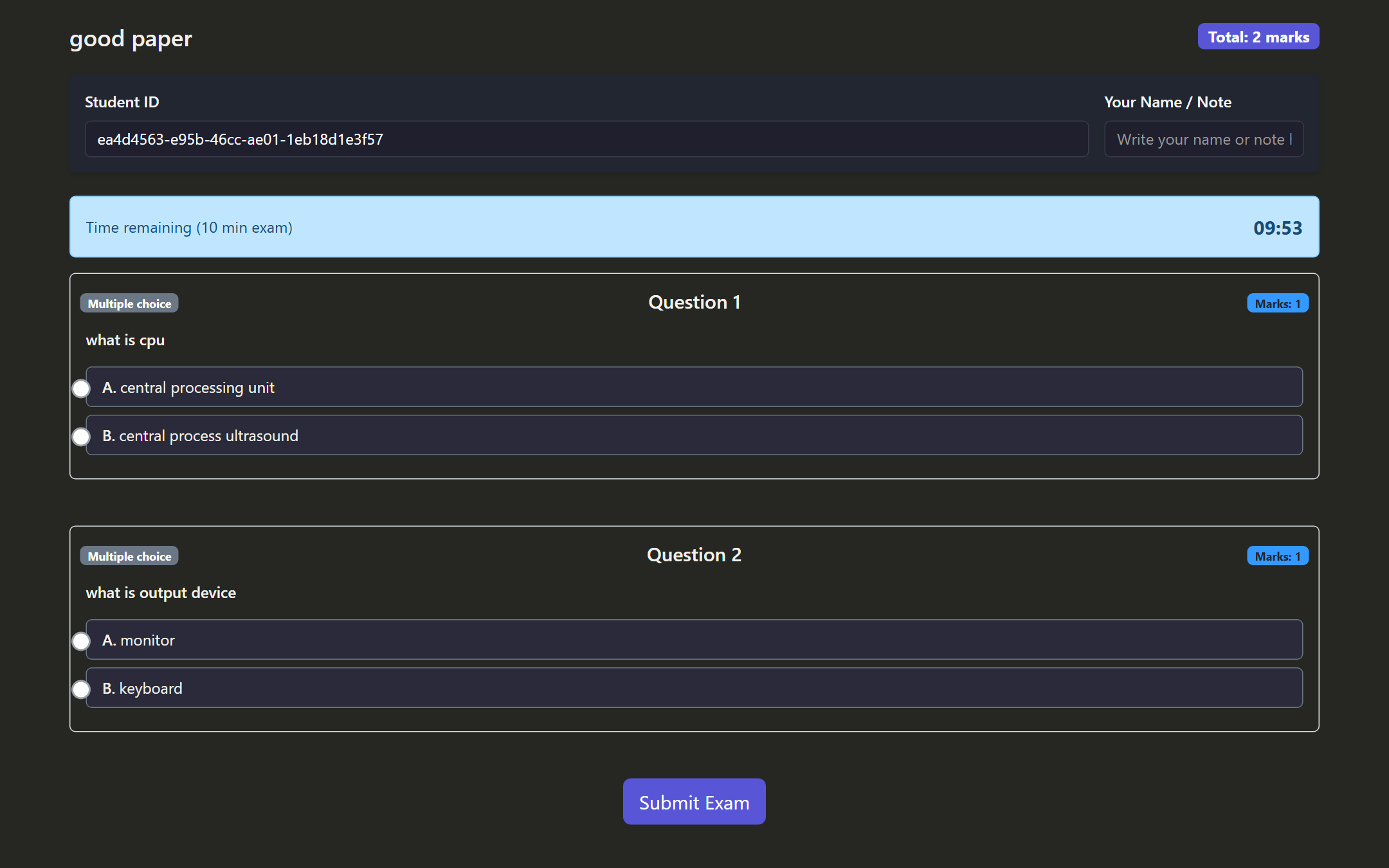
At the top you will see:
- The exam title and the Total marks badge.
- Your Student ID (auto-filled) and an optional Your Name or Note field.
- A Time remaining bar if the exam is timed. It counts down from when you first opened the exam, so submit before it reaches zero.
Each question card shows its type and its marks. Answer the way the type expects:
- Multiple choice or True/False — select one option.
- Multi-select — tick all that apply.
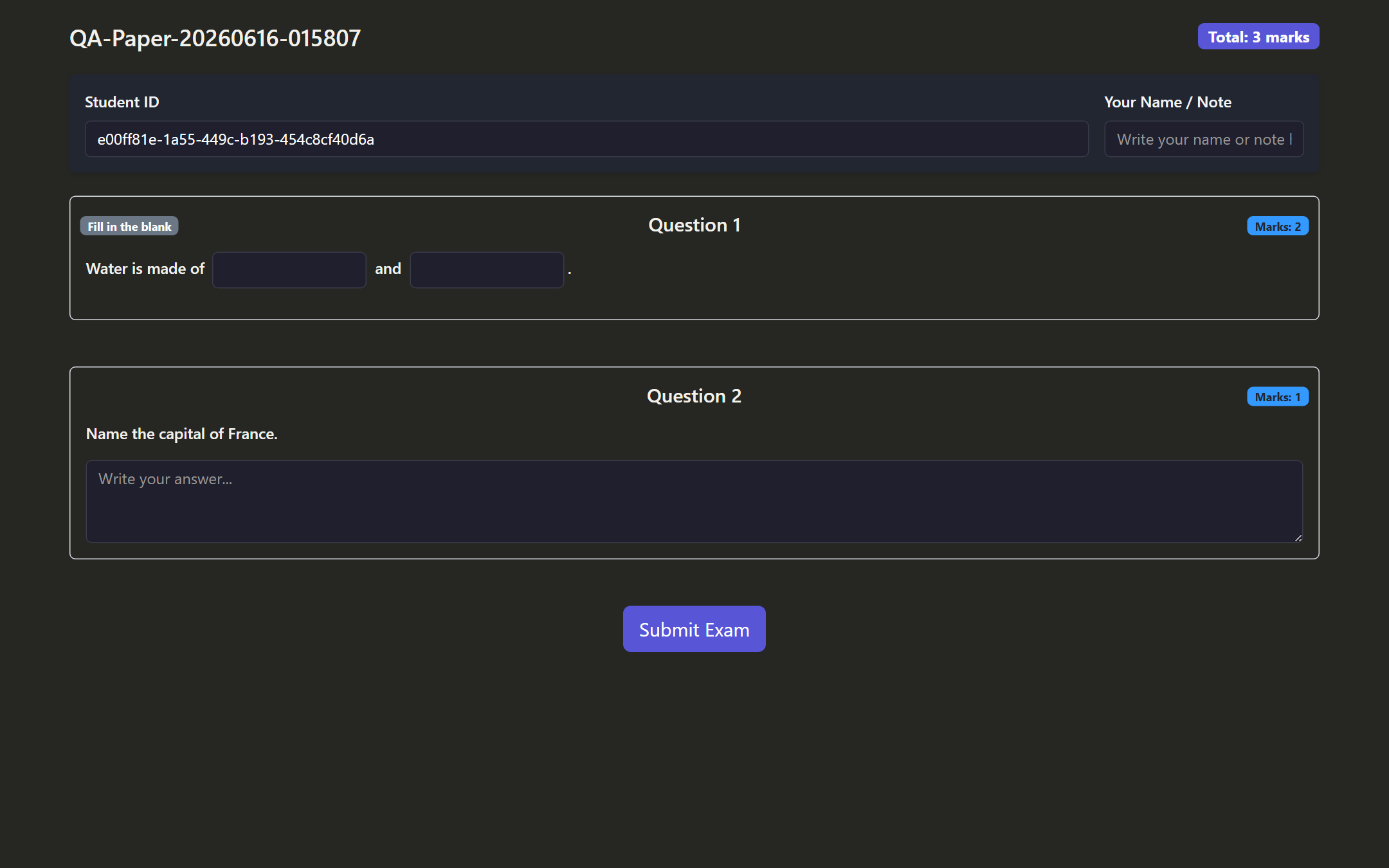
- Short or long answer — type into the text box.
- Fill in the blank — type into each blank in the sentence.
- Numeric — type the number. Equivalent forms such as one-half written as a fraction or a decimal are accepted.
- Matching — drag each answer chip onto the item it matches.
- Ordering — drag the rows into the correct order.
Drag-and-drop questions
For Matching and Ordering questions, use drag-and-drop with a mouse, touch or keyboard:
- Ordering — drag each row up or down until the list is in the right sequence.
- Matching — drag a chip from the pool onto the matching slot. Dropping a chip on a slot that is already filled returns the previous chip to the pool; drop a chip back on the pool to unassign it.
Submitting
When you have answered everything, click Submit Exam. After submitting:
- You will see a confirmation. Depending on your teacher’s Show results to students setting, you may also see your score and per-question feedback, or just a confirmation.
- If you launched from Moodle, a Return to Moodle link takes you back to the course, and your grade is sent to the Moodle gradebook automatically.
Some questions may show as “pending review.” Open-ended and image questions are sometimes graded by your teacher rather than instantly. Your final mark for those appears once the teacher reviews them.
Tips
- Do not refresh or close the tab mid-exam if it is timed; the countdown keeps running.
- If the exam allows multiple attempts, you can retake it up to the Max attempts limit.
- Equivalent math answers are accepted, so write the form that is natural to you.
Need a hand?
If this guide does not cover what you are after, open a ticket and our team will help.
Contact us